
The simple fix:
- Open regedit.
- Navigate to HKEY_LOCAL_MACHINE\SYSTEM\CurrentControlSet\Control.
- Delete the PortableOperatingSystem registry key.
- Restart the machine.
- Retry upgrading the system to Windows 11.
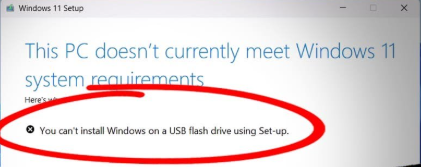
Credit: Upgrade to Win11 failed, says can’t install from USB – Microsoft Q&A
Summary
- Why this happens: Windows thinks your current Windows 10 is a portable “Windows To Go” install because a registry flag (PortableOperatingSystem) is set to 1. That blocks in‑place upgrades and shows errors mentioning USB.
- Goal: Remove that flag, restart, and run the upgrade from inside Windows.
- Time: 7–20 minutes
- Risk: Low–Medium (you’ll touch the registry—make a restore point first)
- Works on: Windows 10 → Windows 11 in‑place upgrade
Quick Win (5–7 minutes)
- Create a restore point (safety)
- Press Win, type “Create a restore point” → Open.
- Select your system drive (C:) → Configure → Turn on system protection (if Off) → OK.
- Click Create → name it “Pre‑Win11‑upgrade” → Create.
- Remove the “portable OS” flag
- Press Win+R → regedit → Enter → Yes to UAC.
- In Registry Editor, View → turn on Address Bar (if you don’t see it).
- Paste this path into the address bar and press Enter: HKEY_LOCAL_MACHINE\SYSTEM\CurrentControlSet\Control
- In the right pane, find the value named PortableOperatingSystem (Type: REG_DWORD).
- If it exists, right‑click PortableOperatingSystem → Delete → Yes.
- If you prefer not to delete: right‑click → Modify → set Value data to 0 → OK.
- Reboot
- Restart the PC to clear the flag in memory.
- Start the upgrade from inside Windows (no USB boot)
- Option A: Use the Windows 11 Installation Assistant (run it from your Downloads).
- Option B: If you have an ISO, right‑click the ISO → Mount → run setup.exe → Keep personal files and apps → Next.
- Option C: If you made a USB, plug it in but do NOT boot from it. Open the USB in File Explorer → run setup.exe from inside Windows.
Deep Clean (15–20 minutes) if it still fails
- Disconnect everything non‑essential
- Unplug extra USB drives/hubs, printers, SD cards. Leave keyboard/mouse/network only.
- Health check Windows files
- Open Start → type “cmd” → right‑click Command Prompt → Run as administrator.
- Run: DISM /Online /Cleanup-Image /RestoreHealth sfc /scannow
- Reboot.
- Make sure the flag didn’t come back
- Re‑check the same registry path; confirm PortableOperatingSystem is gone or set to 0.
- Free space and disable blockers
- Ensure 20–30 GB free on C: (run Storage Sense; empty Downloads/Recycle Bin).
- Temporarily disable or uninstall third‑party AV/“tune‑up” tools; they can block setup.
- Update Windows 10 (Settings → Update & Security → Windows Update → Check for updates) and graphics/storage drivers.
- Try a clean boot upgrade
- Press Win+R → msconfig → Services tab → check “Hide all Microsoft services” → Disable all → OK → Restart.
- Run setup.exe again (ISO mounted or USB opened in Explorer).
- After upgrading, undo the clean boot (msconfig → Normal startup).
- Last resort: clean install (optional)
- Back up files (you said you already did).
- Boot from the USB and clean install Windows 11 (this wipes apps/settings). Only do this if in‑place continues to fail.
Prevent It Again
- Avoid cloning Windows to/from external USB drives; that can set the “portable OS” flag.
- Do upgrades from inside Windows (setup.exe) rather than booting the USB when you want to keep files/apps.
- Keep regular backups and enough free disk space on C:.
Stop if…
- This is a work/school laptop or BitLocker is on and you don’t have the recovery key. Ask IT or back up the key before changes.
- You’re not comfortable editing the registry. Get help—wrong edits can cause issues. You made a restore point for safety.
Why this works (plain English)
- PortableOperatingSystem=1 tells Windows “I’m running from a USB drive (Windows To Go).” That mode blocks feature upgrades. Deleting the value (or setting it to 0) returns Windows to normal, allowing the Windows 11 setup to proceed.
Optional: command‑line way (advanced)
- Check the flag: reg query “HKLM\SYSTEM\CurrentControlSet\Control” /v PortableOperatingSystem
- Remove the flag: reg delete “HKLM\SYSTEM\CurrentControlSet\Control” /v PortableOperatingSystem /f
FAQ
- I don’t see PortableOperatingSystem. What now?
- Then this specific issue isn’t your blocker. Run the Deep Clean steps and check setup logs at C:$WINDOWS.~BT\Sources\Panther for exact errors.
- Is it safe to delete that value?
- Yes. It’s only used to mark Windows To Go environments. Deleting it (or setting to 0) returns to standard behavior. You also have a restore point.
- Do I need TPM/Secure Boot again?
- If PC Health Check said you’re good, you likely meet requirements. If unsure, enter UEFI/BIOS to confirm TPM 2.0 enabled and Secure Boot On.